How to Add a Promotion on LinkedIn (Step-by-Step Guide + Troubleshooting + Visibility Explained)
By Sarah Johnson — LinkedIn profile consultant and career strategist specializing in profile optimization for SaaS operators, sales leaders, and founders since [2019].
TL;DR — Skip to What You Need
Go to Profile → Experience → "+" → Add position
Select your company from the dropdown with the logo — not by typing — or LinkedIn will not nest the role as a promotion
Add your new title, start date, and a scope-and-results description
Toggle Notify network deliberately — it is not always the right move
After saving, update your headline and About section before posting an announcement
For troubleshooting a promotion that won't display correctly, jump to Troubleshooting & Common Mistakes.
What Counts as a Promotion Update on LinkedIn
On LinkedIn, a promotion is recorded as a nested position under the same employer — your new title appears visually stacked beneath the company name, alongside your previous role. This is distinct from adding a new job entry, which creates a separate experience block and implies you changed employers.
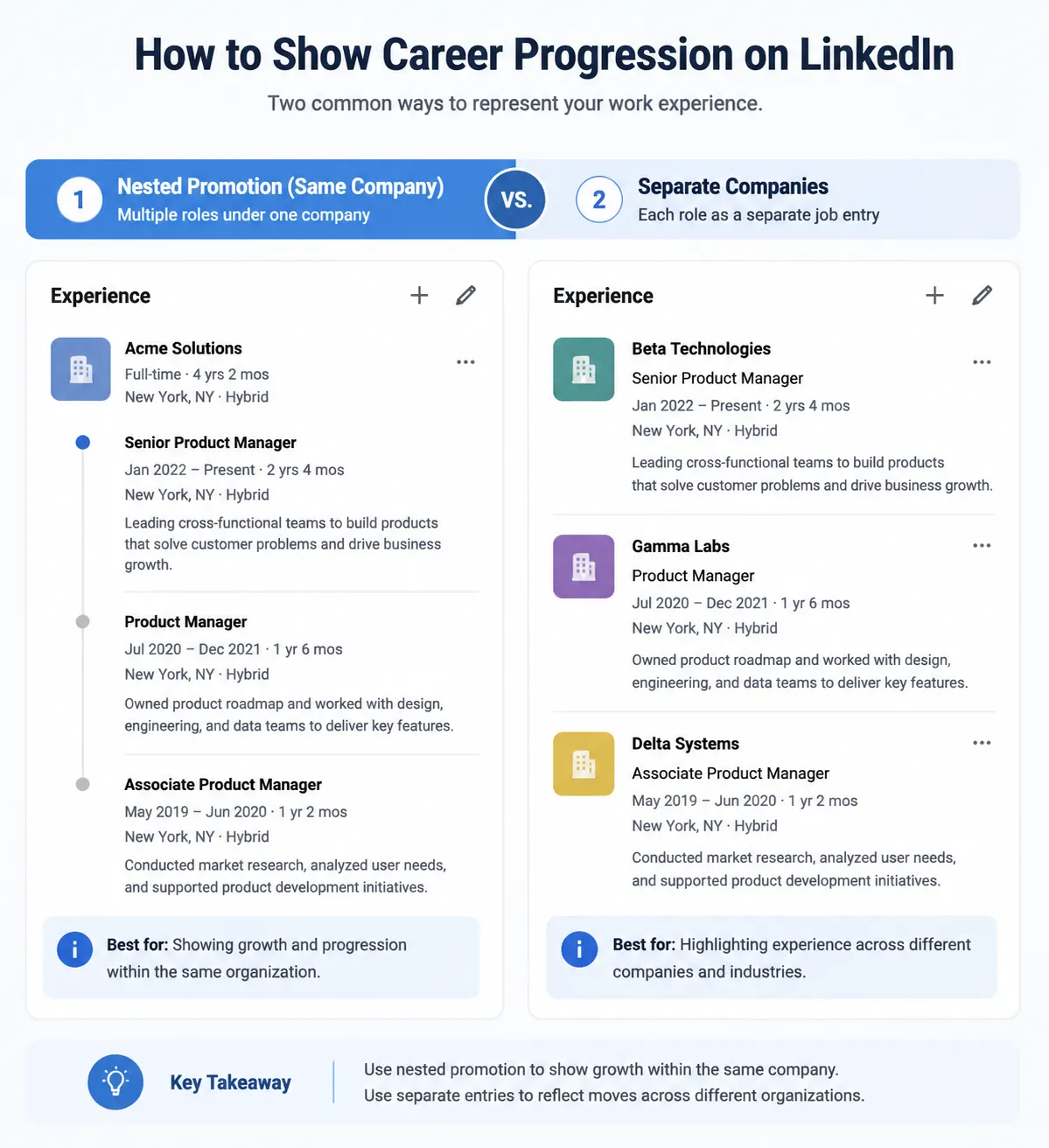
In most cases, LinkedIn generates a promotion celebration card and pushes a feed notification when the following conditions are met — though exact behavior can vary slightly depending on account state and LinkedIn's periodic interface updates:
The new role and the previous role share the same company entity, matched via LinkedIn's internal company page — not just matching text
The new role's start date follows the previous role's start date at the same employer
The Notify network toggle is enabled at the time of saving
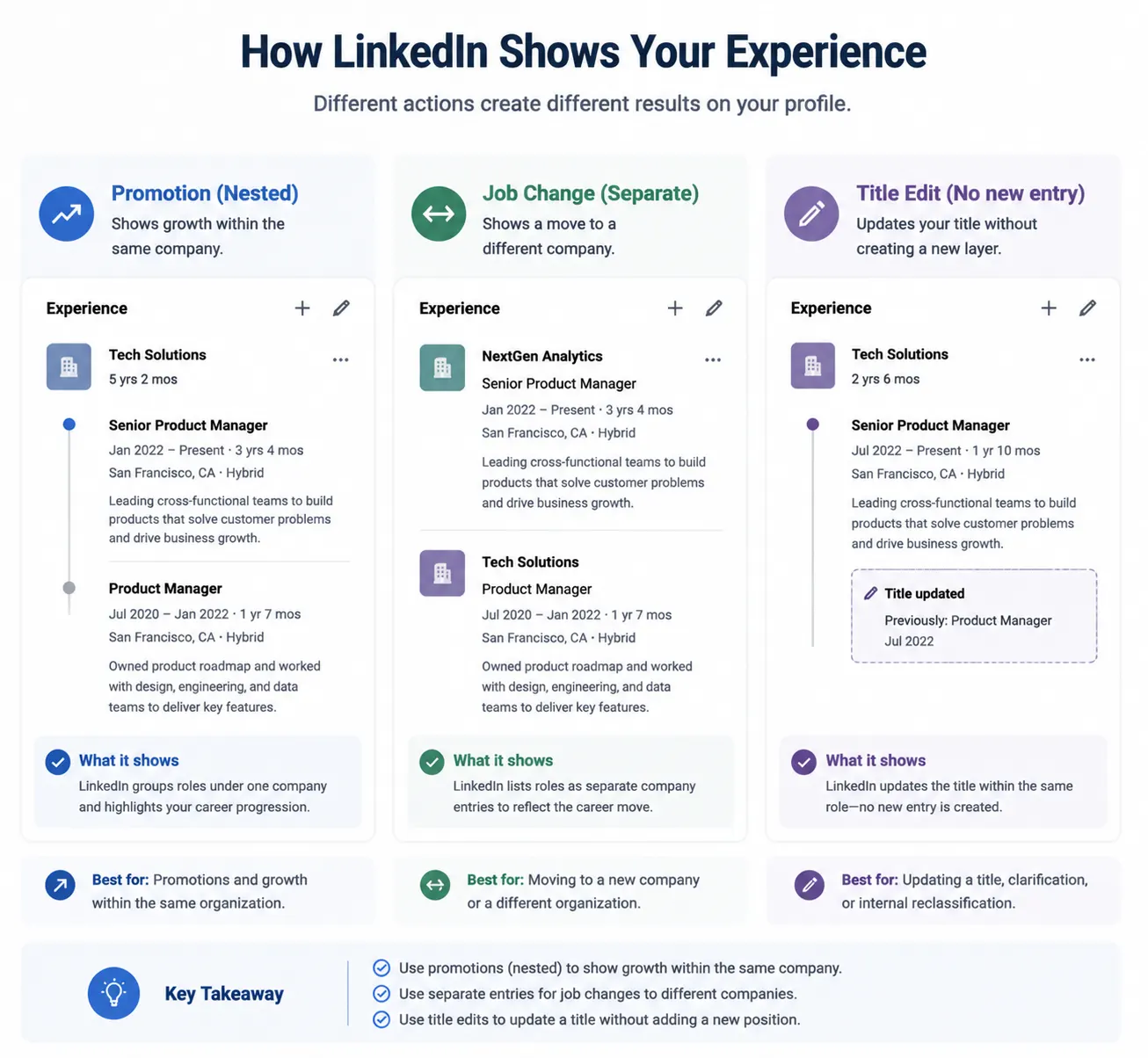
If any of those conditions are not met, LinkedIn typically records the entry as a job change rather than a promotion. In most cases this means no celebration card and no automatic feed notification — though see the Edge Cases section below for scenarios where visual nesting may appear correct while the card does not propagate, or vice versa.
According to LinkedIn's Help Center, profile updates are shared with your network based on your notification settings, and the promotion designation depends on how roles are linked within your experience section. Career platforms including Indeed and Glassdoor consistently identify the current-role update as one of the highest-impact profile changes for recruiter visibility — a pattern that aligns with LinkedIn's own documentation on profile ranking.
What Most LinkedIn Guides Miss
Most how-to articles on this topic cover the click sequence and stop there. Three conceptual points are almost never explained — and they account for the majority of cases where a promotion update produces unexpected results.
1. LinkedIn stores companies as entities, not as names
LinkedIn does not link your two roles together by comparing the text you typed. It uses an internal company page ID — a unique identifier that is the same regardless of how you spell or capitalize the company name in the text field. Two entries can both display "Acme Inc." on your profile and still be treated as different employers by LinkedIn's system, if they're linked to different pages.
This is why selecting the company from the autocomplete dropdown — and confirming the logo appears — is not a style preference. It is the mechanism that tells LinkedIn which entity your role belongs to. Typing a name manually, even if it looks identical on screen, bypasses that link entirely.
2. "Add position" and "Edit position" produce categorically different records
These are two separate operations with different outcomes:
Edit position modifies the existing role in place. No new entry is created. No celebration card is triggered. Nothing nests.
Add position creates a new role entry. If the company entity matches your previous role, LinkedIn nests it visually and can generate a celebration card. If it does not match, it appears as a separate employer block.
Most confusion about promotions — including the "why does it look like I changed companies?" problem — traces back to not knowing which path you are on, or selecting "Edit" when the goal was to add a nested promotion above the existing role.
3. "Notify Network" triggers three distinct mechanisms, not one
Most people treat the Notify Network toggle as a simple "tell my connections I updated something" setting. It is more specific than that. When enabled at the time of saving a promotion, it is observed to initiate some or all of the following — the specific combination can vary by account state:
A structured celebration card pushed into connections' feeds (formatted differently from a regular post)
Increased weight in LinkedIn's feed algorithm for profile activity associated with the update
Surfacing in account-level widgets such as "Stay in touch" and "People you may know"
These are distinct from each other, and from any post you publish yourself. A manual announcement post does not substitute for the celebration card mechanism — and the card generally cannot be retroactively triggered once you have saved without it.
How LinkedIn Links Promotions Internally
Understanding what LinkedIn actually does when you record a promotion helps explain why small UI choices — like which dropdown item you select — produce very different outcomes. This section is more technical than the rest of the guide; skip to Step-by-Step if you only need the practical instructions.
The entity graph concept
LinkedIn's backend maintains a graph structure where companies are nodes, each assigned a unique internal ID tied to their LinkedIn company page. When you add a role and select a company from the autocomplete dropdown, you are creating a link between your profile and one of those entity nodes — not storing the company name as a text string. The name displayed on your profile is pulled from that entity's page data. The entity ID is what LinkedIn's system actually uses.
This is why two roles can display identical company names on your profile while LinkedIn treats them as belonging to different employers: if they are linked to different entity IDs, they are — from LinkedIn's internal model — different companies.
In practice, when you type a company name and press Enter without selecting from the dropdown, the role may be stored as a text record without a valid entity link, or linked to an entity that does not match your existing role. The visual result looks identical either way. The system behavior is not.
Role stacking logic
LinkedIn renders two roles as a nested promotion (visually stacked under one employer block) when it detects:
Both roles belong to the same profile
Both roles are linked to the same company entity node
The newer role's start date is after the older role's start date at that entity
There is no significant unexplained gap between the end of the older role and the start of the newer one
When all four conditions are met, LinkedIn registers the update as a promotion and renders the stacked view. When any condition fails — most commonly the entity node match — LinkedIn renders two separate employer blocks instead, and no promotion is registered by the system.
Depending on account state, there is sometimes a short delay between the data being written correctly and the stacked visual rendering on the public-facing profile. This typically resolves within a few hours without any intervention.
Feed trigger conditions
The celebration card and feed notification are a separate system from the profile update itself. They fire only when three independent conditions are all satisfied at the moment of saving:
Promotion recognized — the role stacking logic above produced a valid nested promotion
Notify Network enabled — the toggle was explicitly on at the time of saving, not retroactively
Global share setting active — the account-level "Share profile updates with your network" is enabled
If any one of these three is not met, the card does not fire — regardless of the other two. A correctly nested promotion with Notify Network off updates the profile but produces no feed activity. A Notify Network toggle that was on, but the entity link failed silently, also produces no card — because without a recognized promotion in the data layer, there is nothing for the feed system to announce.
How to Add a Promotion on LinkedIn: Step-by-Step
On Desktop
Step | What to Click | Notes |
|---|---|---|
1 | Profile photo → View Profile | Or use the "Me" menu at the top |
2 | Scroll to Experience | If missing, your profile is incomplete — add the section first |
3 | Click "+" at the top right of Experience | Select Add position — this icon sits at the section-header level, separate from the pencil icon that appears on individual role entries |
4 | Enter your new job title | Use the exact title on your offer letter or HR system |
5 | Select company from the dropdown with the logo | A correctly linked entry shows a square logo thumbnail and follower count — if neither appears, it is a text-only match and will not link to LinkedIn's company entity |
6 | Set employment type and location type (Remote / Hybrid / On-site) | Recruiters filter by location type |
7 | Enter the start date of the new role | LinkedIn will auto-set the end date of the previous role |
8 | Write a scope-and-results description | Framework below |
9 | Set the Notify network toggle intentionally | Decision guide below |
10 | Click Save | Profile typically updates within a few hours |
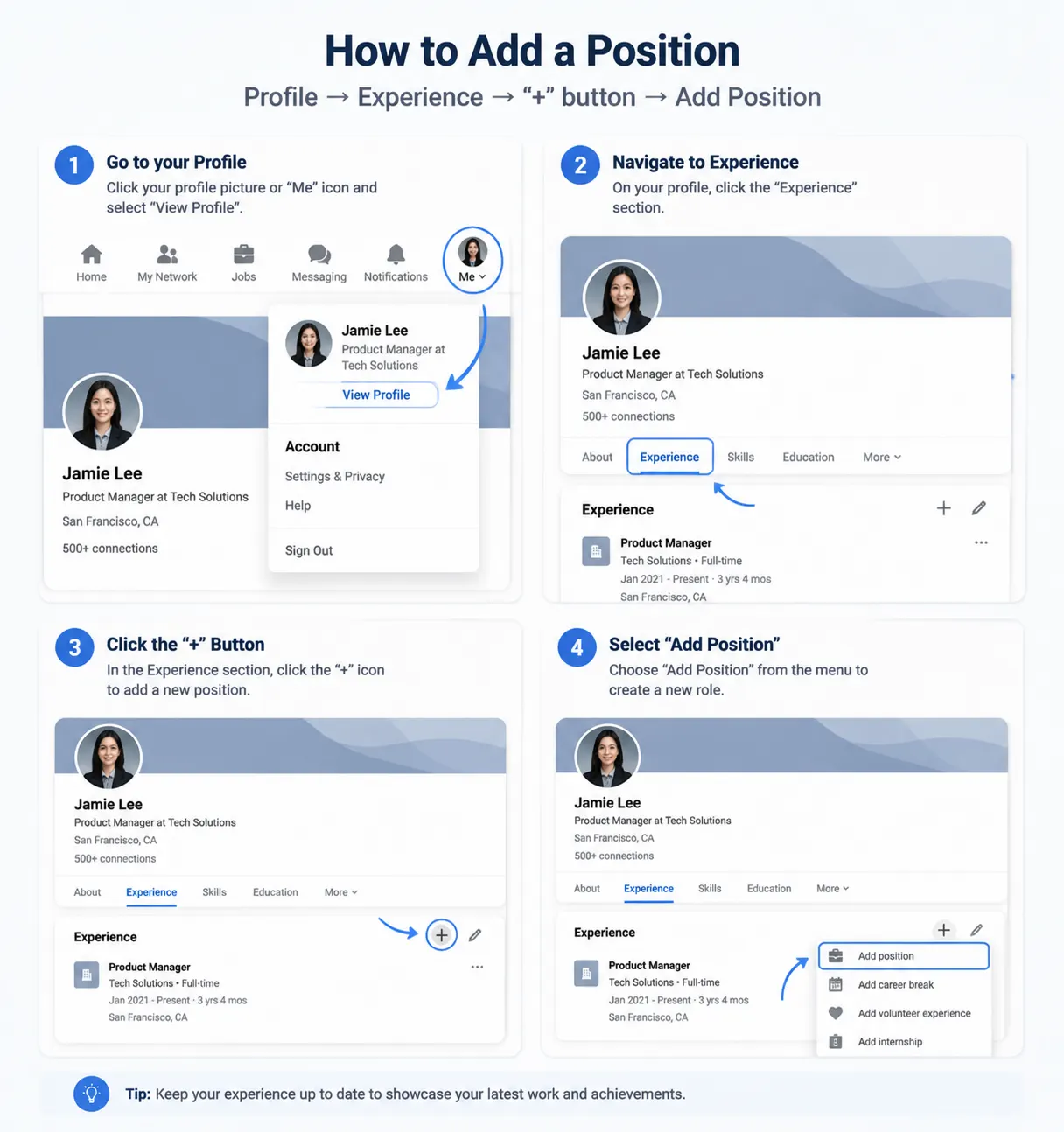
On Mobile (iOS and Android)
The flow is nearly identical: Profile photo → View Profile → Add section → Position. The "+" on the Experience block also works directly.
One important difference on mobile: the Notify network toggle sometimes appears behind an extra confirmation screen. Review it carefully before tapping through — this is where users most commonly broadcast updates they intended to keep private.
Promotion vs. New Position: Which Should You Add?
Use this decision framework before editing your profile.
Quick Decision Flow
Did your employer change?
└─ Yes → Add a new separate position entry

└─ No (same employer)
   └─ Did your title or responsibilities meaningfully change?
      └─ Yes → Add position (nested promotion under same employer)
      └─ No → Edit the existing role only
When to Use Each Option
Situation | What to Do | Why |
|---|---|---|
Title bump, same team, same scope | Edit existing role + add achievements | Keeps the timeline clean; in practice, a single-line entry with no description reads as a placeholder |
New title + meaningfully expanded scope | Add nested position under same employer | Standard promotion path; can trigger celebration card if entity match is valid |
Internal move to a different department or function | Add nested position with new description | Same employer, different chapter — the new description carries most of the signal |
Promoted and relocated to a different country | Add nested position + update location | Helps surface your profile to recruiters in the new region, though results vary by industry |
Promotion coincided with company rebrand or acquisition | Add new role under new company name + edit old role to note the transition | The company dropdown will otherwise conflict — see Edge Cases section |
Lateral move, no change in responsibilities | Edit existing role only | A promotion announcement for a lateral move can read as misleading to anyone who knows the company structure |
General principle: a new entry should represent a meaningfully different role, not just a different line on a business card.
LinkedIn Promotion vs. Job Change vs. Title Edit: What's Actually Different
These three update paths look similar in the UI but produce different profile records, different search signals, and different feed behaviors. The table below consolidates the distinctions.
Promotion (nested) | Job Change (new entry) | Title Edit (in-place) | |
|---|---|---|---|
What it creates | New role stacked under same employer block | Separate employer block on your profile | Modified version of the existing role record |
Requires entity match | Yes — same company page as previous role | Yes — new employer's company page | No entity change |
Triggers celebration card | Yes, if Notify Network on and entity match is valid | Yes, if Notify Network on | No |
Shows career progression visually | Yes — nested arrow between roles | No — reads as a separate job | No |
Updates current title in recruiter search | Yes | Yes | Yes |
Creates a new record in experience history | Yes | Yes | No |
Can be undone cleanly | Yes — delete the nested role | Yes — delete the entry | Yes — re-edit |
Appropriate for | Internal promotion, expanded scope, internal transfer | New employer, spinoff into a legally separate entity | Typo fix, wrong date, minor wording update |
The distinction most people miss: Title Edit and Promotion both update the job title displayed on your profile — but only the Promotion creates a new record in LinkedIn's experience data. That matters for profile completeness, career narrative continuity, and how LinkedIn's system categorizes the change. A title edit does not produce a new data point in your experience history; a nested promotion does. In practice this means a title edit will not trigger a celebration card even with Notify Network on, regardless of how significant the change was.
Troubleshooting & Common Mistakes
This section consolidates the most frequent problems — whether they occur before saving, at the moment of saving, or after the fact.
Problem: Promotion is not displaying as nested under the same company
Root cause: Company entity mismatch. The new role was not linked to the same company page as the previous role — most commonly because the company name was typed manually rather than selected from the autocomplete dropdown.
Fix: Delete the new role and re-add it using Add position, this time selecting the company from the dropdown. Confirm the company logo is visible before saving. Do not press Enter on the typed name.
Common triggers for this mismatch:
Missing "Inc.", "Ltd.", or "Corp." in the typed entry
A spacing, hyphen, or capitalization difference
The company recently rebranded and now has two separate LinkedIn pages
UI behavior note: When the company is correctly linked, a small promotion arrow or stacked-role visual appears between the old and new titles within the same employer block. If you see two separate blocks with the employer name appearing twice, the entity link did not match — proceed with the fix above.
Problem: Two entries appear for the same company instead of one stacked block
Root cause: Same as above — the new role is linked to a different company entity than the previous role, so LinkedIn renders two separate employer sections.
Fix: Delete the incorrectly added role and re-add it by selecting the correct company from the autocomplete. If a celebration card has already published, delete it from your Activity → Posts feed (three-dot menu on desktop, long-press on mobile).
Problem: Celebration card or feed notification did not appear
Possible causes, in order of likelihood:
Notify Network was off at save time. There is no way to retroactively trigger the card. Publish a manual announcement post tagging the company page — this achieves similar distribution under your own framing.
"Share profile updates" is disabled globally. Check: Settings & Privacy → Visibility → Visibility of your LinkedIn activity → Share profile updates with your network.
Indexing delay. The card can take up to 24 hours to roll out in most cases, and occasionally longer on accounts with lower prior network activity. If nesting looks correct on your own profile, this is likely the cause — wait before troubleshooting further.
Observed across multiple accounts: Card propagation timing appears to correlate with how recently active a user's connections are. Accounts with a higher proportion of recently active connections have tended to see propagation within 2–3 hours. Accounts with smaller or less active networks more commonly see the full 24-hour window. This pattern has been noted across accounts in different industries and seniority levels, though it has not been confirmed by LinkedIn's documentation.
Problem: Previous role still shows no end date
LinkedIn does not always auto-close the previous role when you add a promotion. Edit the previous role manually and set the end date to the same month as the new role's start date.
Problem: Accidentally notified the network for a correction or typo fix
Delete the auto-generated activity post from Activity → Posts. The card disappears from your feed; any notifications that have already gone out will expire naturally.
Mistakes to avoid before saving
Notifying the network before the promotion is officially announced internally LinkedIn's celebration card can reach colleagues and former managers before your direct manager has communicated the news. Update after the official internal announcement.
Writing a list of duties instead of a scope-and-outcomes description A list of responsibilities ("Manage X, oversee Y, lead Z") signals less to a senior reader than a concise scope statement. See the description framework below.
Posting your own announcement at the same moment as saving In most cases, LinkedIn generates a celebration card automatically when Notify Network is on — though if the entity link failed silently, no card will appear regardless (which is worth checking before assuming the notification settings are the problem). Assuming the card does fire, posting your own announcement at the same moment means the two compete rather than reinforce each other. A gap of 12–24 hours tends to work better.
Edge Cases Most Guides Don't Mention
The troubleshooting section above covers the common failures. These are the less-documented scenarios — situations that look like they should work, and don't, for reasons that aren't obvious from the UI.
Case 1: The company has multiple LinkedIn pages
Large companies, companies that have been on LinkedIn for many years, and companies that have gone through mergers often have more than one LinkedIn page — sometimes two nearly identical ones created at different times by different admins. The autocomplete dropdown may show both.
If you linked your previous role to Page A and now link the promotion to Page B — even though both pages display the same company name — LinkedIn treats them as different employers and will not nest the roles.
What to check: Before adding the promotion, open the company page your existing role is linked to (click the company name from your profile). Note the URL path (e.g., linkedin.com/company/acme-inc-123). When typing in the dropdown for the new role, confirm you are selecting the page with the same URL structure and a matching follower count.
Case 2: Rebranded or acquired company — old page and new page coexist
When a company rebrands or is acquired, LinkedIn's company page situation can split: the original entity page (now showing the old name or updated to the new name) and a newly created page (under the new name or the acquirer's name) may both exist simultaneously.
If your previous role was linked to the original entity and you add the promotion under the new entity, nesting will not occur.
Observed behavior: This is most commonly encountered after acquisitions where both the acquiring company's LinkedIn page and the acquired company's legacy page remain active. Both appear in the autocomplete; they have different follower counts and different page histories.
What to do: Check which entity your previous role is linked to, then match it for the new role. If the company has formally migrated to a new page and your previous role points to the old one, you may need to edit both roles to point to the same current entity before the nesting will work.
Case 3: The edit-after-save interference
If you edit the newly saved promotion role within the first 12–24 hours after saving — to fix a typo, adjust the start date, or update the description — this has been observed in some cases to interfere with or delay the celebration card propagation. LinkedIn's documentation does not address this behavior explicitly.
What to do: Draft your description carefully before the initial save. If you need to correct something immediately after saving with Notify Network on, be aware that the card propagation may be affected. For non-urgent fixes, waiting until after the 24-hour window has passed before editing is a lower-risk approach.
Case 4: Very recently created company pages
If your company's LinkedIn page was created or claimed within the past few weeks, it may not appear in the autocomplete dropdown, or may appear without the full entity data LinkedIn needs to link it correctly.
What to do: If the page does not appear in autocomplete, or appears without a logo or follower count, the page may still be in the indexing process. Add the role with whatever match is available, then revisit the link once the page is fully indexed — typically within a few weeks of the page being established or verified. Your company's LinkedIn page admin can also request that LinkedIn review the page status.
Case 5: Multiple regional or brand-specific pages for the same employer
Multinationals and large enterprises sometimes maintain separate LinkedIn pages for regional entities — "Acme North America," "Acme UK," "Acme Global" — in addition to a main brand page. These are different company entities.
If your previous role was linked to "Acme North America" and the new role links to "Acme," they will not nest. The correct entity to use is whichever page your company designates as the primary one — typically the page your company's own HR team or LinkedIn admin uses.
What to check: Look at the profiles of colleagues in the same employment. Whichever company page entity appears most consistently on profiles at your level is generally the correct one to use.
Case 6: HR system or ATS integration conflicts
Some organizations use LinkedIn's partner integrations — HRIS platforms, ATS systems, or LinkedIn's own Talent Hub — to push role data to employee profiles automatically. When a company-side integration writes a role to your profile, the entity linking is handled by the integration's internal mapping, not by your manual dropdown selection.
Observed behavior: In a number of documented cases, company-side integrations have been observed to link roles to a different company entity than what the employee's existing profile uses — sometimes the parent company entity rather than a subsidiary, or a regional entity rather than the global one. When this mismatch occurs, the promotion may not nest even though both parties (HR and the employee) have done everything correctly on their respective ends.
What to do: If you notice an unexpected duplicate or a de-nested role appearing after a company-wide HR data sync, check whether your organization runs a LinkedIn integration before editing anything manually. Manual edits can create a conflict with the integration's next sync cycle and result in a loop of the same problem. Contact your HR team or LinkedIn administrator; resolving the entity mapping at the integration level is usually more reliable than patching it at the profile level.
Avoid listing responsibilities. Your description should convey scope and signal outcome-orientation — the kind of language that surfaces in recruiter searches and reads as credible to a senior audience.
Three-part framework:
Scope — What you own: team size, budget, geography, product line
Mandate — Why the role exists: the specific problem or gap this position addresses
Signal — One forward indicator: a metric, a market, or a deliverable
Example:
Leading paid acquisition and lifecycle for the SMB segment across NA and EMEA — $4M+ annual budget, four direct reports. Mandate: rebuild attribution and ship a unified funnel model in H1. North-star metric: blended CAC payback under 11 months by end of FY.
This approach is specific enough to be credible, concise enough to be readable, and contains the kind of language that appears in recruiter Boolean searches.
The Notify Network Toggle: Decision Guide
Scenario | Notify? | Reason |
|---|---|---|
Promotion officially announced internally and externally | ✅ Yes | Triggers the celebration card, feed weight, and widget surfacing — assuming the entity link is valid |
Building a personal brand or considering future roles | ✅ Yes | Profile update activity is associated with higher organic reach during the window, depending on network activity levels |
Promotion not yet announced by HR or your manager | ❌ No | Do not let LinkedIn communicate news your manager has not yet shared |
Under NDA, quiet period, or stealth-mode company | ❌ No | Update silently; announce later when appropriate |
Correcting a typo, wrong date, or old title | ❌ No | An administrative fix does not warrant a celebration card — and in practice, connections who see it will often assume it's a new role, which creates confusion |
Sensitive role change (restructure, active legal matter) | ❌ No | Quiet update; let it surface organically if at all |
Between offers and monitoring your current situation | ❌ No | A celebration card can surface signals you may not intend |
Global setting: Go to Settings & Privacy → Visibility → Visibility of your LinkedIn activity → Share profile updates with your network and toggle it off to prevent any profile change from pushing to your network. Useful if you edit your profile frequently.
Profile Visibility and Optimization After a Promotion Update
What LinkedIn typically does when you save a promotion with Notify Network on
When the conditions for a promotion are met and Notify Network is enabled, LinkedIn in most cases initiates a structured activity window — though the specific mechanics can vary by account state. This generally includes pushing a celebration card to connections' feeds, increased weight in the feed algorithm for activity on your profile, and surfacing your profile in widgets such as "Stay in touch" and "People you may know."
This update type is associated with higher profile activity in many observed cases. The scope of that activity window varies based on network size, title seniority, timing relative to typical connection usage patterns, and how much engagement the resulting card and profile views generate. These factors interact, and no consistent multiplier can be stated across different accounts and contexts.
According to LinkedIn's Talent Solutions documentation, profiles with recently updated current titles receive higher relevance scores in LinkedIn Recruiter searches. This is consistent with reporting from career platforms including Indeed and Glassdoor, which identify current-role updates as among the highest-impact profile changes for recruiter discoverability.
How to use the activity window
Update your headline first — profile visitors see the headline before the experience block. It should reflect the new role before anything else
Refresh your About section — a few new sentences signal that the rest of your profile is current
Pin a relevant recent post — visitors who land on your profile during the window will scan the top of your content feed
Reply personally to congratulations messages within the first several days — a reply resurfaces the conversation in the recipient's inbox and reopens dormant professional relationships. A generic "Thanks!" does not do this; something specific to that person does
Check who viewed your profile during this window — if someone relevant appears, a connection request with a brief note is a low-friction outreach while shared context is still fresh
Promotion Announcement Post: Three Templates
Posts that generate meaningful engagement typically lead with work, people, or a lesson — and let the promotion function as context rather than headline.
Template 1 — Specific Gratitude
Three years ago, [colleague] told me [specific piece of advice]. I ignored it for six months, then tried it, then built half my approach around it.
Today I'm stepping into the [new title] role at [Company], which means I get to keep working on [area you care about] with the people who taught me how to do it well.
If you've ever sat through one of my late-night Slack messages about [topic] — thank you for not muting me.
Why it works: Names a specific person doing a specific thing. The title appears in paragraph two, which reads as less performative than leading with it.
Template 2 — Lesson Forward
The thing I didn't expect about [previous role] is that [counterintuitive observation].
Carrying that into the next chapter — starting [day] I'll be [new title] at [Company], working on [scope]. The plan: [one concrete forward priority].
Always open to talking with people thinking about [topic]. DMs are open.
Why it works: Frames the promotion as a continuation rather than an arrival. Invites conversation and anchors you to a topic you want inbound on.
Template 3 — Quiet Confidence
New title, same work, mostly. Now officially the [new title] at [Company].
Grateful to [manager / team] for the trust. Back to it.
Why it works: In a feed where most promotion posts follow the same format, a short post stands out. Works best when your network reads brevity as confidence rather than indifference.
Post Format Guidelines
Do | Don't |
|---|---|
Tag the company page | Tag your manager without asking first |
Use 0–3 hashtags, lowercase, topic-specific | Stack 10+ generic hashtags |
Post Tuesday–Thursday, 8 a.m.–2 p.m. in your time zone | Post Sunday night or Friday after 4 p.m. |
Reply to every comment within the first several hours | Go quiet after posting |
Use a real photo (team, workspace, candid) | Use a stock graphic with confetti |
When NOT to Add a Promotion on LinkedIn
The promotion has been verbally offered but not formalized in writing — titles get renegotiated and offer letters can be delayed
You are in a late-stage interview process at another company — a high-profile promotion update can complicate those conversations
The title change reflects a restructure or reduction rather than genuine scope expansion — the framing is harder to control, and it is often better to wait until there is something forward-looking to attach
You have added multiple promotions in a short period — consider spacing them to maintain signal clarity
The company is in a visible period of layoffs or public difficulty — celebrating publicly while colleagues are job-searching creates a brand impression that may not serve you
Full Checklist
Stage | Action |
|---|---|
Before | Confirm promotion is officially announced internally |
Before | Decide: nested promotion or separate new position |
Before | Draft role description (scope / mandate / signal) |
During | Experience → "+" → Add position |
During | Select company from dropdown — logo must be visible |
During | Set title, dates, location type, employment type |
During | Set Notify network toggle deliberately — not by default |
During | Save |
First 24 hours | Update headline to reflect new role |
First 24 hours | Refresh About section |
First 24 hours | Pin a relevant recent post |
First 24 hours | Post announcement (12–24 hours after saving, not simultaneously) |
First 1–2 weeks | Reply personally to every congratulations message |
First 1–2 weeks | Check "Who viewed your profile" regularly |
First 1–2 weeks | Send reconnection messages to relevant viewers |
FAQ
Why is my promotion not showing on LinkedIn?
The most common cause is a company entity mismatch — the new role was typed manually rather than selected from the dropdown, so LinkedIn treats it as a different employer. Delete the role and re-add it by selecting the company with the logo from the autocomplete. Other causes include the "Share profile updates" setting being disabled globally, or a LinkedIn indexing delay that typically resolves within 24 hours. See the Troubleshooting section above for all causes and fixes.
How long does a LinkedIn promotion update take to appear?
Profile changes usually appear on your own profile within a few minutes — sometimes near-instantly, sometimes with a short delay depending on LinkedIn's servers at that moment. The feed notification and celebration card are slower: they can take anywhere from a couple of hours to the full 24-hour window, and occasionally a bit longer on less active accounts. If nothing has appeared after 24 hours, check Settings & Privacy → Visibility → Share profile updates with your network before trying anything else.
Can I add a promotion without notifying my network?
Yes. Toggle off "Notify network" before saving. Alternatively, disable "Share profile updates with your network" in Settings before making any changes — this prevents any update from pushing to your connections. The role still appears on your profile for anyone who visits it.
Does updating LinkedIn with a promotion help with recruiter visibility?
According to LinkedIn's Talent Solutions documentation, recently updated profiles and current job titles factor into profile ranking within LinkedIn Recruiter. Career platforms including Indeed and Glassdoor identify current-role updates as among the most impactful profile changes for recruiter discoverability. How much any individual update affects inbound contact depends on field, network size, title seniority, and how well the rest of the profile is optimized.
Should I update LinkedIn immediately when I get promoted, or wait?
A few days to a week is a reasonable window. Update once the promotion is officially announced internally, the title is confirmed in writing, and you have had time to write a clear description. Updating before the internal announcement risks your network knowing before your colleagues do.
Can I add a LinkedIn promotion if I got a new title but no raise?
Yes. A title change with expanded responsibilities is a legitimate update. Focus your description on scope and mandate rather than framing that implies rank or compensation increase.
What if I was promoted multiple times in the same year?
Add each role. LinkedIn collapses short-tenure entries into a stacked view under the employer, so the profile doesn't look cluttered. Multiple promotions within one year generally read positively to a profile visitor — assuming the descriptions support each one as a distinct scope change and don't read as title inflation. Two promotions in eight months with well-written descriptions tends to look like fast growth; two with thin or identical descriptions can invite skepticism.
What's the difference between "Add position" and "Edit position" for a promotion?
Add position creates a new role entry that can be nested under the same employer when you select the correct company entity from the dropdown. Edit position modifies the existing role in place without creating a new entry. For a genuine promotion, use Add position — it is what enables the nested display and the celebration card. Edit position produces neither.
Why does my promotion look like I changed companies?
This is the company entity mismatch issue. LinkedIn is treating the new role as belonging to a different employer than the previous one. Fix: delete the role and re-add it, selecting the company with the logo from the dropdown. See the Troubleshooting section for full details.
Methodology
This guide is based on the following sources, weighted in order:
LinkedIn's own documentation — LinkedIn's Help Center, Talent Solutions documentation, and publicly available product announcements, as of [Month Year]. Direct citations are linked inline where available.
Observed behavior across multiple professional accounts — Profile update behavior, feed propagation timing, and entity-linking outcomes noted across accounts in different industries, seniority levels, and network sizes. Where patterns are described, they reflect what has been consistently associated with the update type across those observations, not a statistically sampled study.
Aggregated user-reported patterns — Career communities, LinkedIn-specific forums, and reported edge cases from practitioners who have documented LinkedIn's behavior in detail.
Where behavioral patterns are described in this guide — such as card propagation timing, profile activity windows, or recruiter search ranking — the language is intentionally hedged to reflect observed association rather than guaranteed outcome. LinkedIn periodically changes how profile updates propagate, display, and rank.
About the Author
By Sarah Johnson — LinkedIn Profile Consultant & Career Strategy Specialist
Sarah Johnson is a LinkedIn profile consultant and career strategist specializing in profile optimization, promotion visibility, and recruiter discoverability strategies for SaaS operators, sales leaders, and founders.
Since 2019, they have worked with professionals across product, sales, and marketing roles to optimize LinkedIn profiles for career growth, internal promotions, and recruiter inbound visibility. Their work focuses on analyzing real-world LinkedIn profile behavior, promotion nesting logic, and visibility patterns within LinkedIn’s internal ranking system.